Using the WS-Auditing Transaction Tracking Policy
Learn about the WS-Auditing Transaction Tracking Policy and policy configuration options.
For information about using policies in the context of the Community Manager developer portal, see Business Policies.
On this page:
- About the WS-Auditing Transaction Tracking policy
- Creating a WS-Auditing Transaction Tracking policy
- Viewing a WS-Auditing Transaction Tracking policy
- Activating a policy
- Attaching a policy
About the WS-Auditing Transaction Tracking policy
The WS-Auditing Transaction Tracking Policy supports transaction tracking functionality that correlates related web service events within a single activity or transaction. For example, if a service in a container uses the Akana Delegate to call another service in a different container that is managed by the Akana Agent, it will automatically insert correlation information into the message that is collected and used by the Policy Manager in two ways:
- Tracking Information: The tracking information allows Policy Manager to correlate service dependencies as they are discovered during runtime. If a service calls another service within the same activity or transaction, an alert will be generated with the details of the discovered dependency.
- Log Information: The log information for a particular usage event for a service is shown in the context of the entire set of activities. The performance and errors associated with each correlated event is shown on a single page for the purpose of Root Cause Analysis (RCA). See the Services > Monitoring > Logs section of the Management Console for more information.
Creating a WS-Auditing Transaction Tracking policy
To add an operational policy
- Go to Workbench > Browse > Organization, and select Policies > Operational Policies. The Policies Summary is displayed.
- Click Add Policy.
- Choose the policy type and click Next.
- Specify a name (required) and description (optional) and click Finish. At the Completion Summary, click Close. The Add Policy Wizard creates a draft policy instance that you can then configure on the Policy Details page.
For more information, see Add Policy.
View WS-Auditing Transaction Tracking Policy Details
To view the WS-Auditing Transaction Tracking policy details:
- Go to Workbench > Browse > Organization, and select Policies > Operational Policies. The Policies Summary is displayed.
- Find the policy on the list and double-click to go to the Details page for the policy. An example is given below.
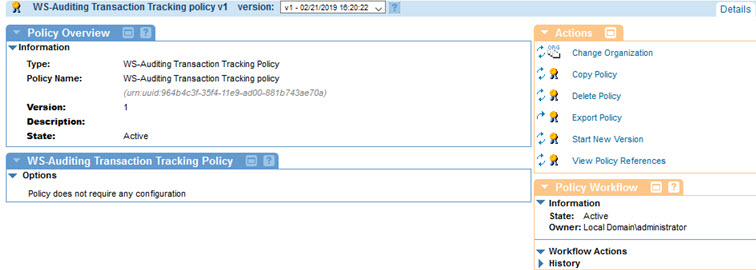
Activating a policy
When you create and configure a policy, the policy is in Draft state. When the policy configuration is complete, activate the policy: click Activate Policy and then confirm. See Activate a Policy.
A policy in Draft state is not available for general use. Once you activate the policy, it is in Active state and is available for use.
Attaching a policy
To use the policy, go to the Policies folder in the respective organization and attach the policy to a web service, binding, or binding operation.